

Hi all,
I need some help choosing the correct method of using text fields inside data grid that display correctly across laptop and smartphone. I require the ability to add another row for 'First Name', 'Middle Name' and 'Last Name', which works fine on the laptop/Tablet view but in smartphone the text field is too compressed. I understand that I can drag the fields into one column, but this is impractical for up to ten rows of names. Are there any other methods to 'add another row' outside of data grid using columns?. Any help is appreciated
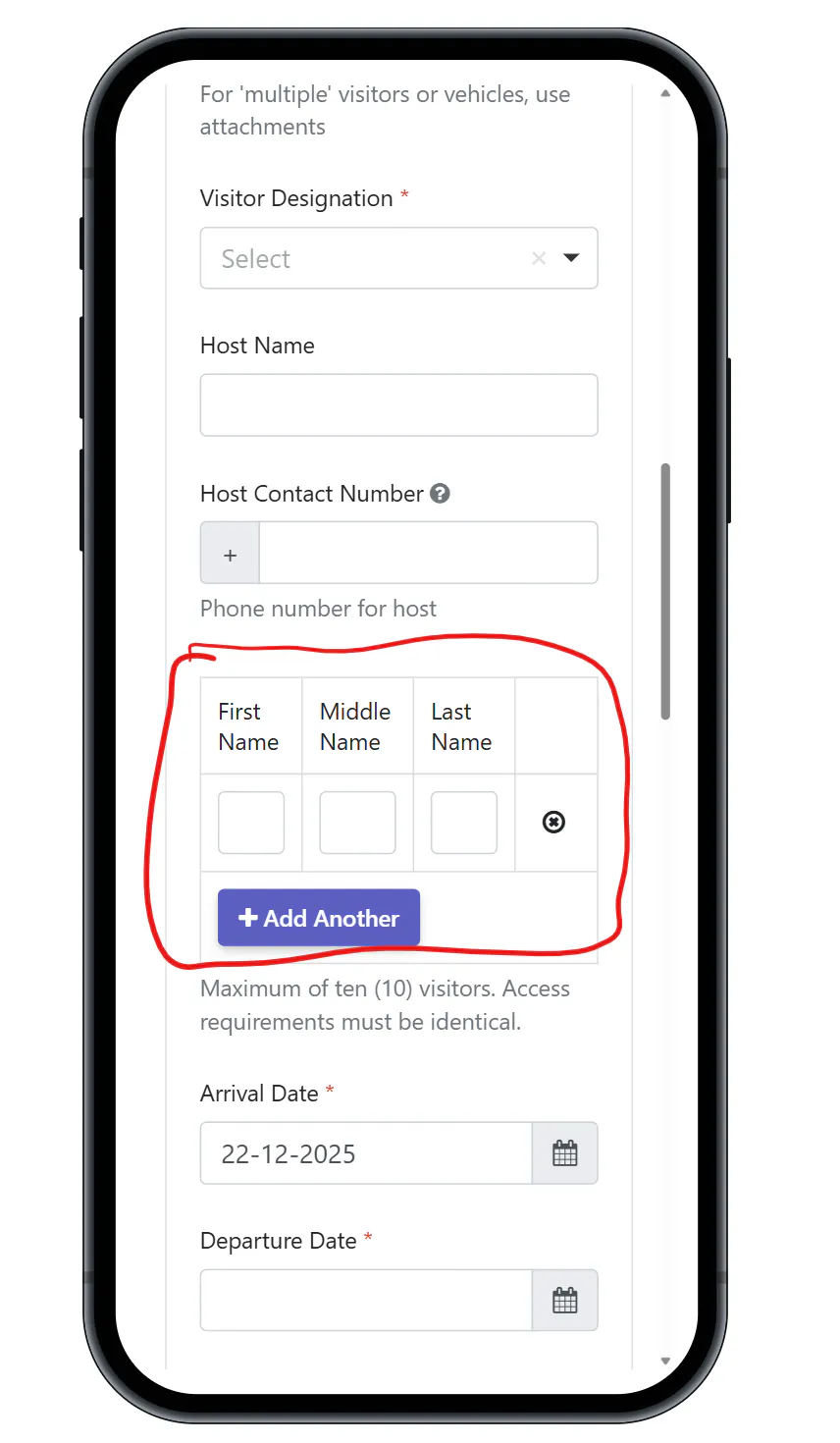
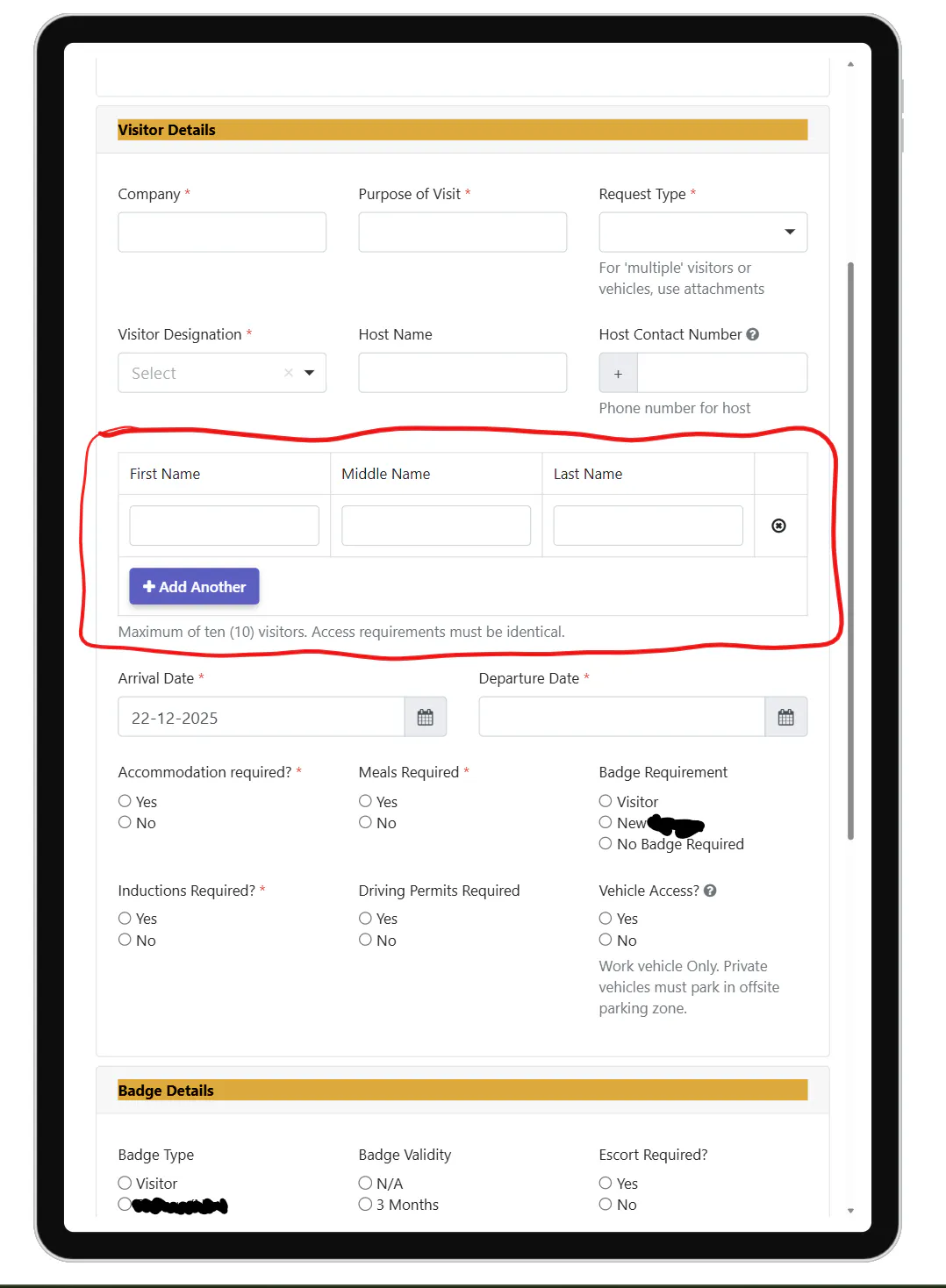
EDIT: I managed to test a few methods and found a solution.
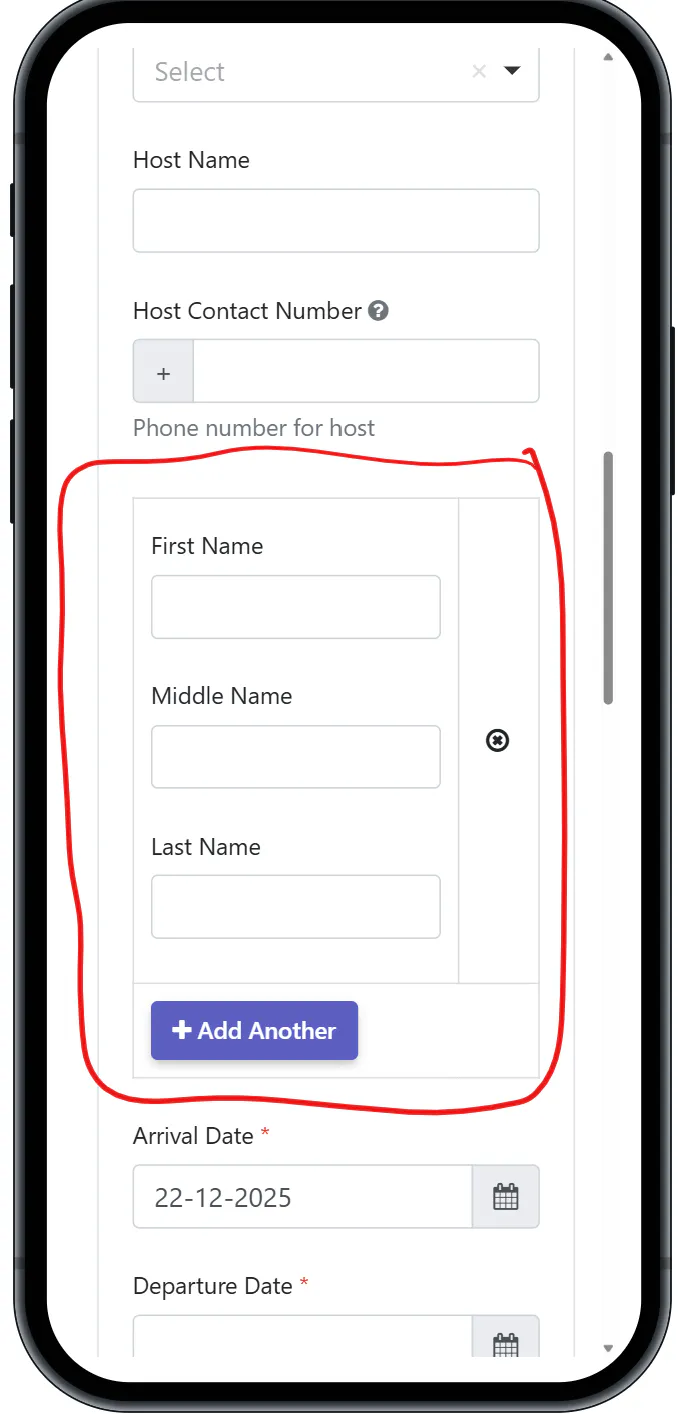
Used the data drig and delete all columns, leaving only one.
Drag a column component inside that cell and then add your text fields. Ensure field width add up to 12.
Hi Derek,
I'm glad to see you found a solution! Just to add to your already great approach, here are a few other options for future reference:
1. Use a Field Set inside your Data Grid - By dragging a Field Set component into your Data Grid first, and then adding other components (like Columns) into that nested Field Set, you can make a Data Grid cell behave like a regular form layout. This allows you to place questions above/below each other or use columns to place them side-by-side within a single row.
2. Use an Edit Grid The Edit Grid works much like the Data Grid in that it allows the user to dynamically add rows when responding. However, the difference is that it does not render as a table with rigid columns. Instead, each entry can be saved and collapsed into a summary view, which saves screen space.

